
FunnelCart 2.174 makes your numbers easier to read and more accurate, puts you in control of each funnel’s data, and makes installation simpler. Here is a tour of the new features, the improvements and the fixes.
This update comes from my own funnels. I check my numbers every day, and I wanted them to read at a glance, to be accurate to the cent, and to leave you in control of your data at all times.
Everything arrives in one click, from the update banner in your WordPress admin. Your funnels, your pages and your settings stay in place.
What’s new in FunnelCart 2.174
Revenue, broken down into four parts
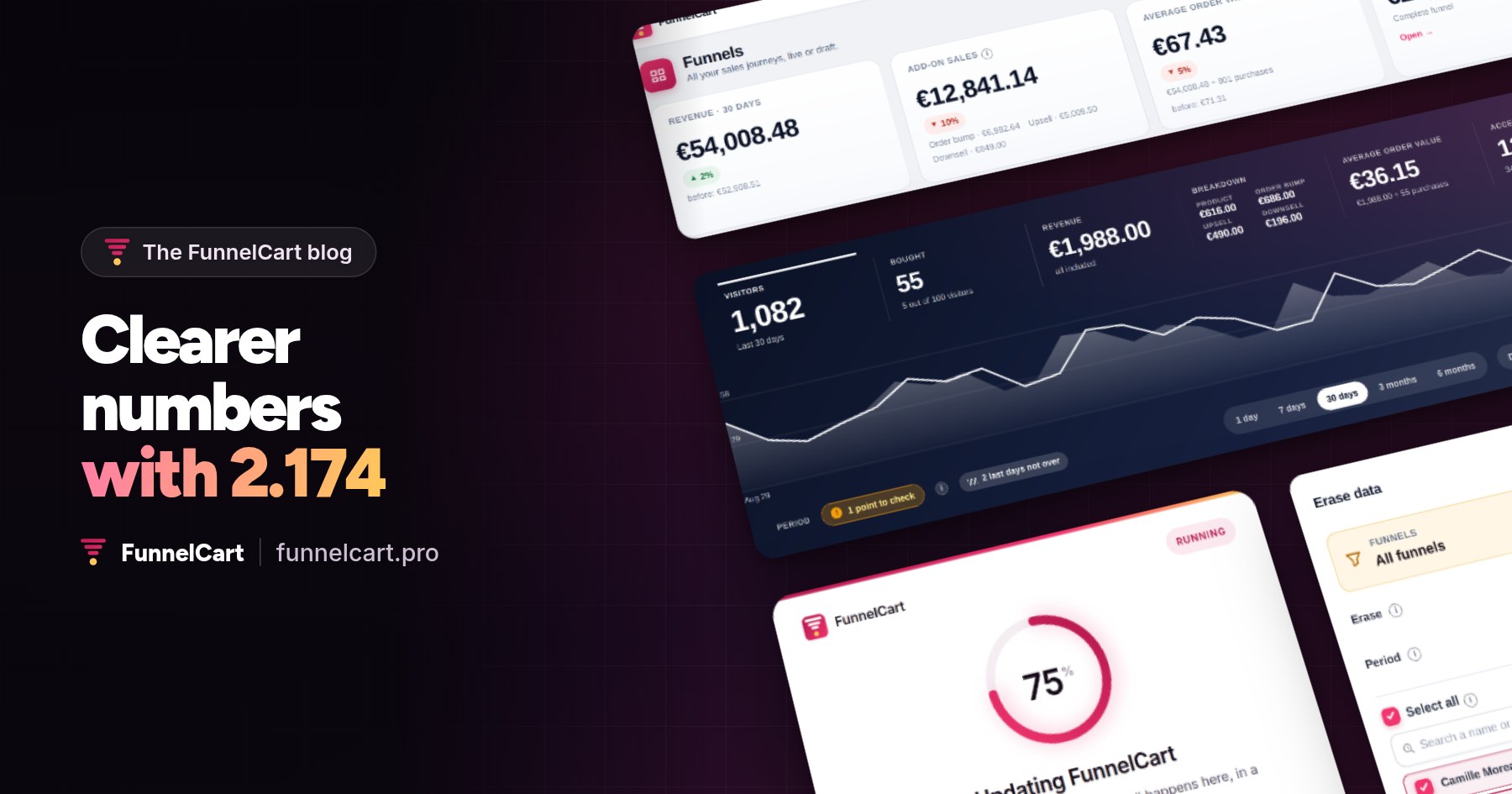
A funnel’s revenue is everything it brings in: the product, the order bump, the upsell and the downsell. You now see each part, in the funnel list as well as in each funnel’s analytics.
At the top of the list, four numbers tell you what matters: your revenue, your add-on sales, your average order value with its calculation, and your top-earning funnel. A funnel’s analytics fit on a single line, with the breakdown right next to the total.
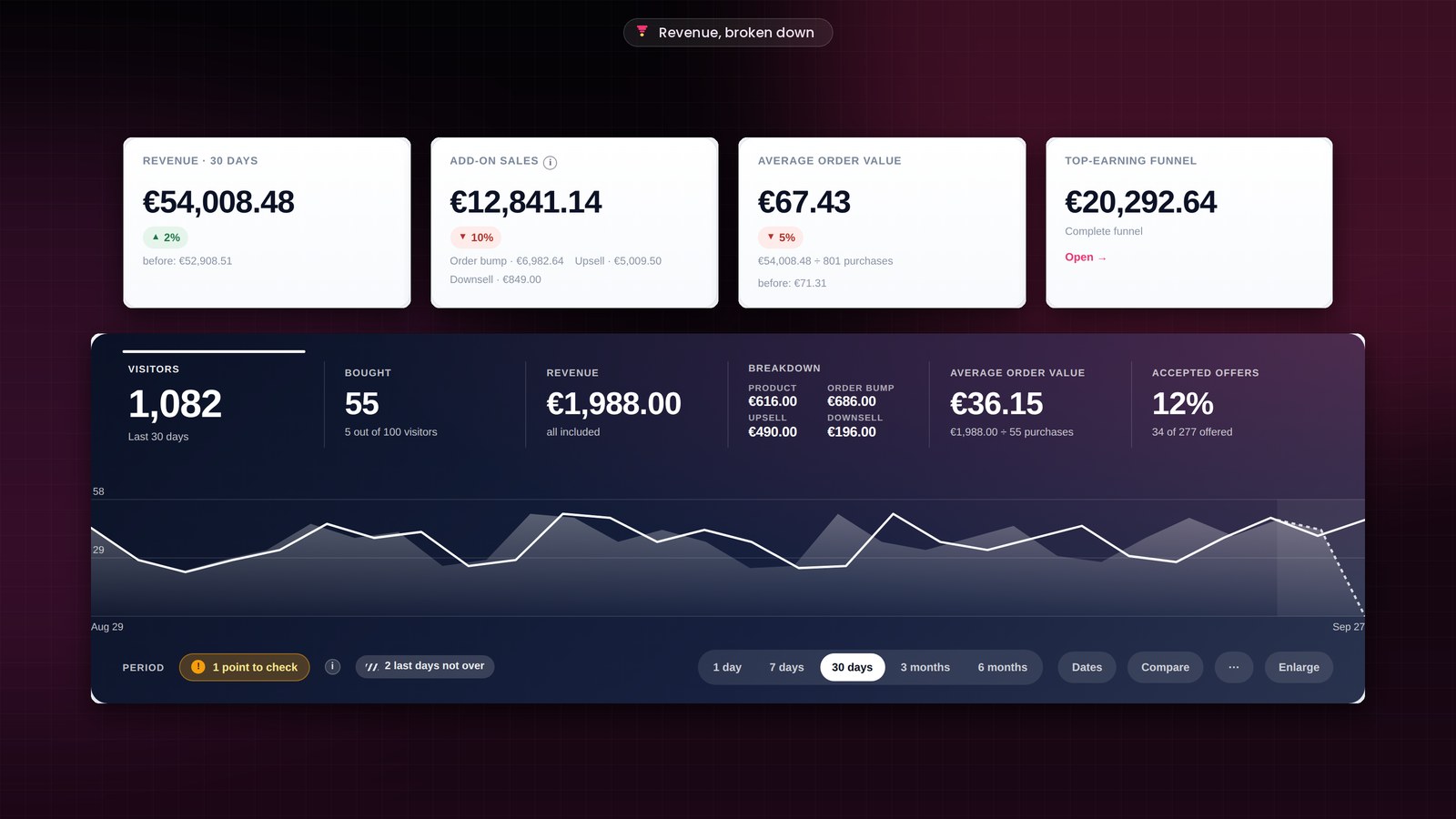
You also see what a visitor brings in, with the calculation written just below. When the funnel has an opt-in page, the value of a subscriber shows next to it. You know how much you can pay for a click, and you see in real time which ad is profitable. It is all explained in the full tour of the features.
Erase a funnel’s data and keep what you want
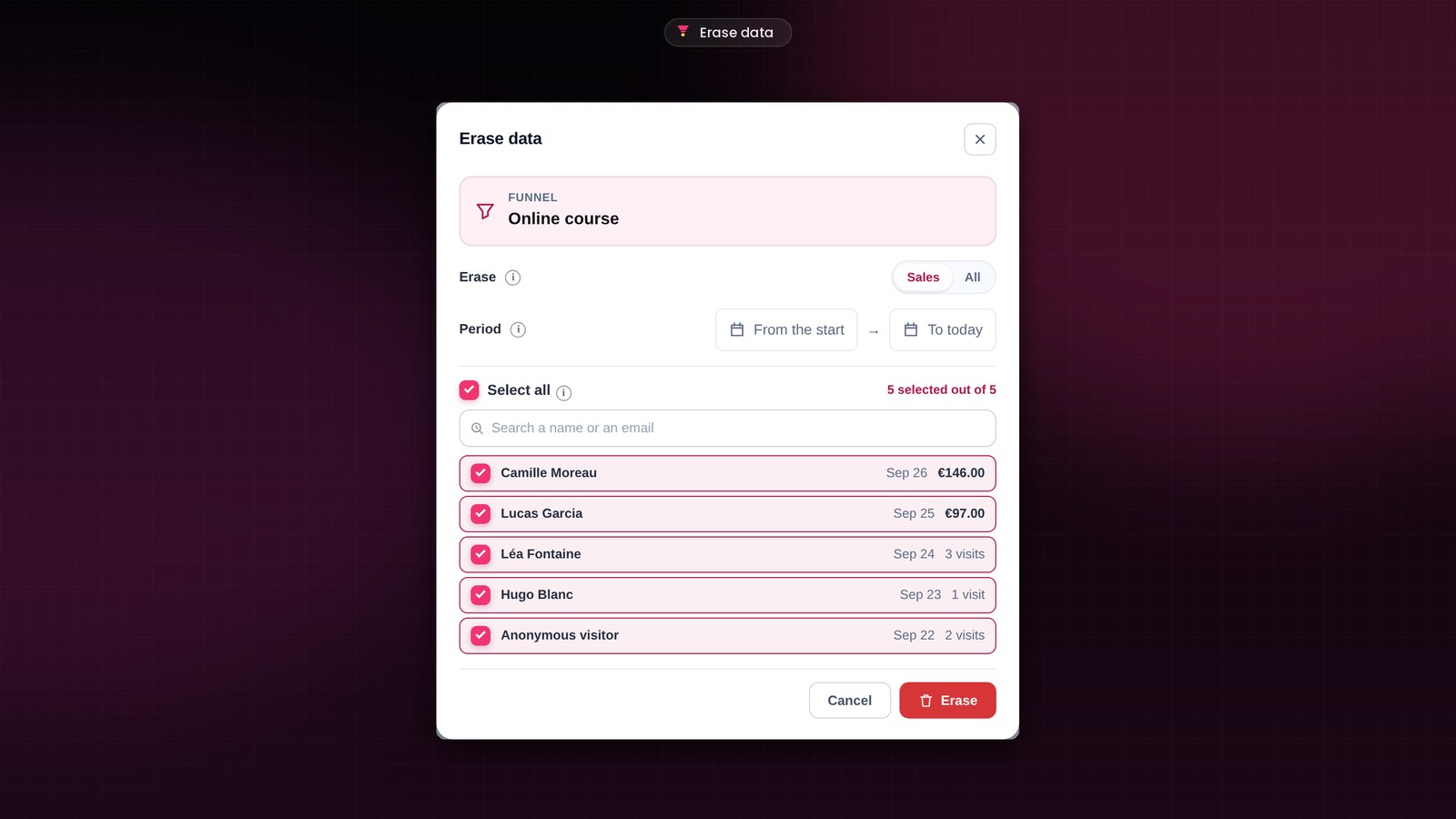
Did you run tests before launch, or do you want a fresh start on a funnel? Open its menu, then “Erase data…”. You can do it for one funnel, or for several at once by ticking them in the list.
You choose sales only or everything, over a precise period. You search for a person by name or email, and you untick the ones you keep. Your orders stay in FluentCart, and your contacts in your CRM.
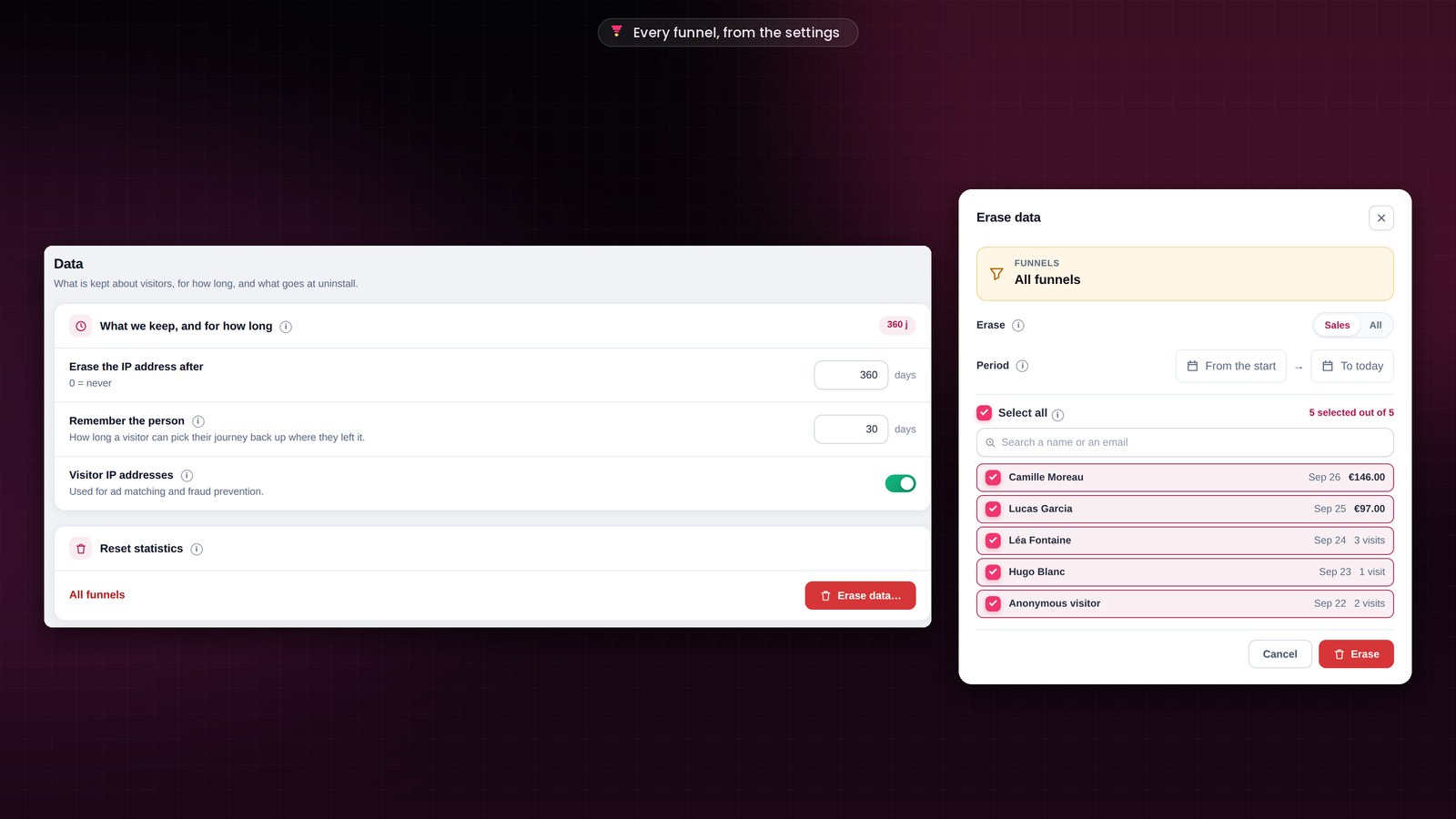
To start fresh on all your funnels at once, open Settings → Data. The “Reset statistics” card opens the same window, for all funnels, with the same choices. Your funnels, their pages, your FluentCart orders and your CRM contacts stay in place.
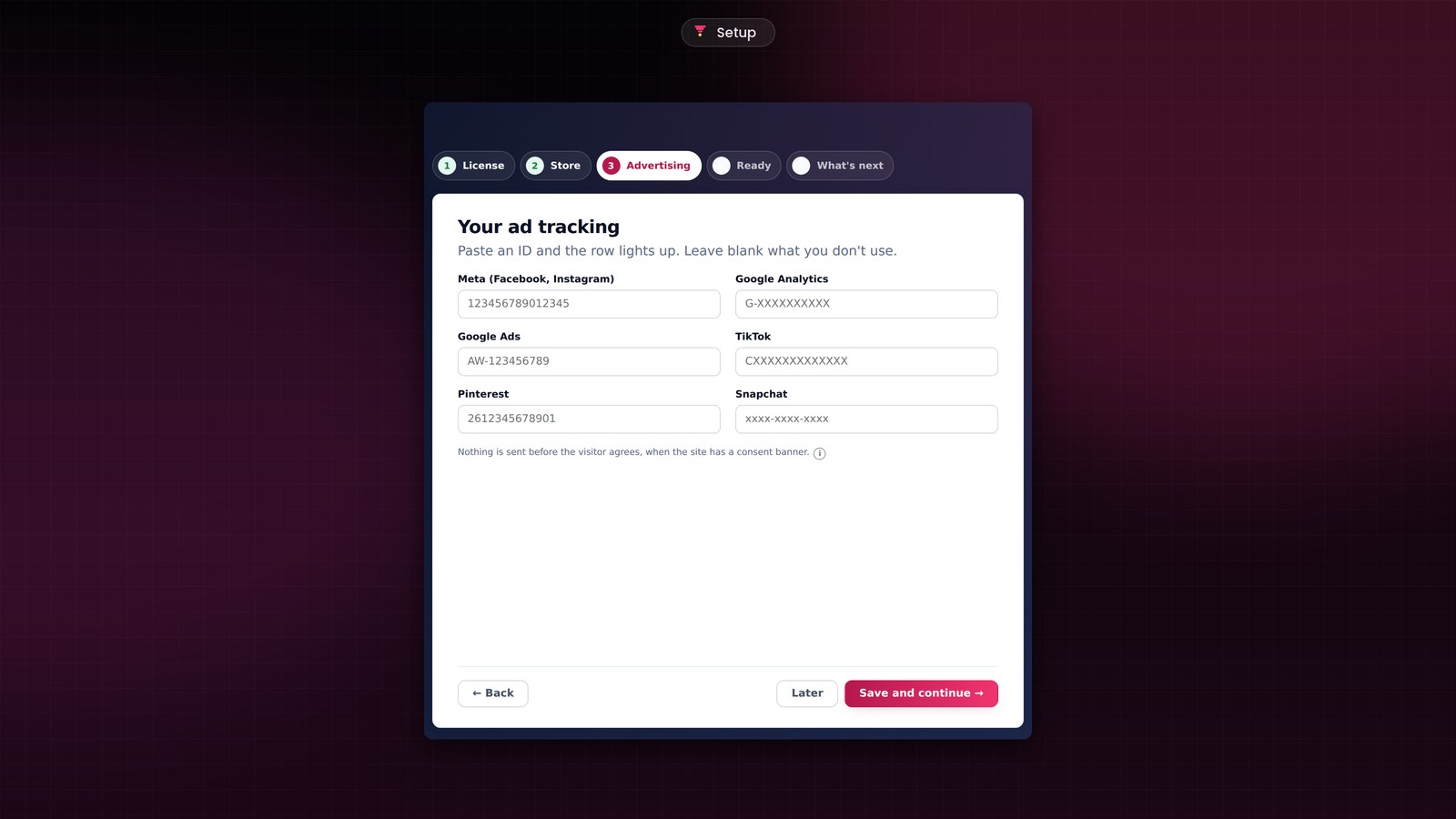
A full-page setup
As soon as you activate the plugin, you land on your license, full page. The setup follows in the same spirit: five screens, one decision per screen, and the buttons always in the same place. You are ready to sell in a few minutes, and your first funnel takes two minutes.
A new update screen
Future updates install on a brand-new screen. You see the previous version next to the new one, then a ring that fills up and the three steps one by one: download, installation, restart. A few seconds later, you are back on your dashboard.

Improvements you will see every day
- The journey follows your funnel. The analytics funnel draws exactly your steps, in their order. You see which step your leads have reached.
- One visitor is one person. Each visitor counts once, and the same number shows on every screen.
- A complete history. Every visit is kept, so you can compare your months and your years. The IP address is erased after 360 days, and you set this delay in Settings → Data.
- The funnel list names the product that triggers each funnel, so you find the right funnel without opening it.
- Each language has its own numbers and dates: 13,817 in English, 13 817 in French.
- The demo reloads cleanly, with sixteen sample funnels and a complete funnel, so you can explore every screen with numbers that add up.
Numbers accurate to the cent
I also checked every screen with numbers, one by one, and fixed what needed fixing.
- With Stripe, the upsell is a one-click charge even when the customer did not tick the box to save their card.
- Revenue counts every sale, the current day included, and the same total shows everywhere.
- A funnel counts the purchases made in its own pages, and only those.
- The order bump is counted tax included, like the rest of the order.
- Erased data disappears from every screen and every chart.
- The translations of your pages (Polylang, WPML) stay in place.
- “Clear all”, in Settings → Data, erases everything at uninstall. Without this option, a reinstall finds your funnels intact.
How to update FunnelCart
The banner appears in your WordPress admin. One click on “Update”, and the update screen takes care of the rest. Your license, your funnels and your numbers are kept.
The details of each version are in the changelog. Don’t have FunnelCart yet? Pricing is on the home page.
Founder offer
Run your funnels with accurate numbers
A one-time lifetime payment or a yearly subscription, with every feature included.
✓ Revenue broken down, offer by offer
✓ Order bump, one-click upsell and downsell
✓ Your data, funnel by funnel
✓ Hosted on your site, zero commission
To go further: FunnelCart in five questions, the videos that show every step, the documentation and the FAQ.
Frequently asked questions
Is the update included in my license?
Yes. Updates are included, whether you chose the one-time lifetime payment or the yearly subscription.
Are my funnels and my numbers kept?
Yes. The update keeps your funnels, your pages, your leads, your analytics and your settings. Your license stays active.
Does erasing a funnel’s data affect my orders?
No. Your orders stay in FluentCart and your contacts in your CRM. Erasing covers the funnel’s numbers and leads, over the period you choose.
Where can I see the details of each version?
In the changelog. Each version has its new features, improvements and fixes there, from the most recent to the oldest.
How much does FunnelCart cost?
The price depends on the number of sites. You choose a one-time lifetime payment or a yearly subscription, updates included. All the details are on the pricing page.